

1. Sign up for free account on ChatGPT.com using your personal email
2. Sign up for free account on Airtable.com using your personal email

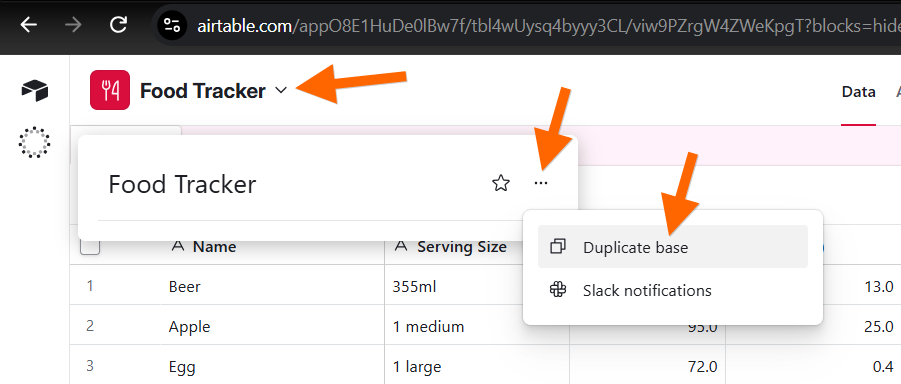
3. Open the Food Tracker base and Duplicate base
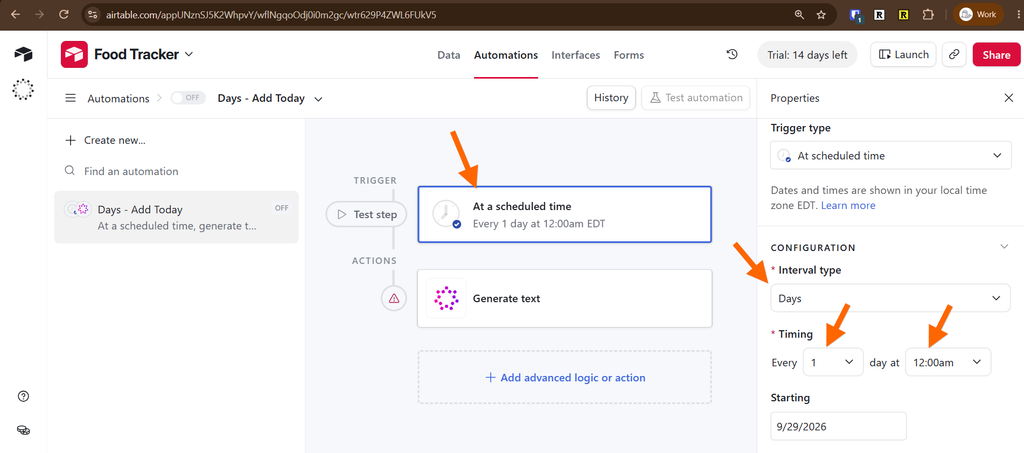
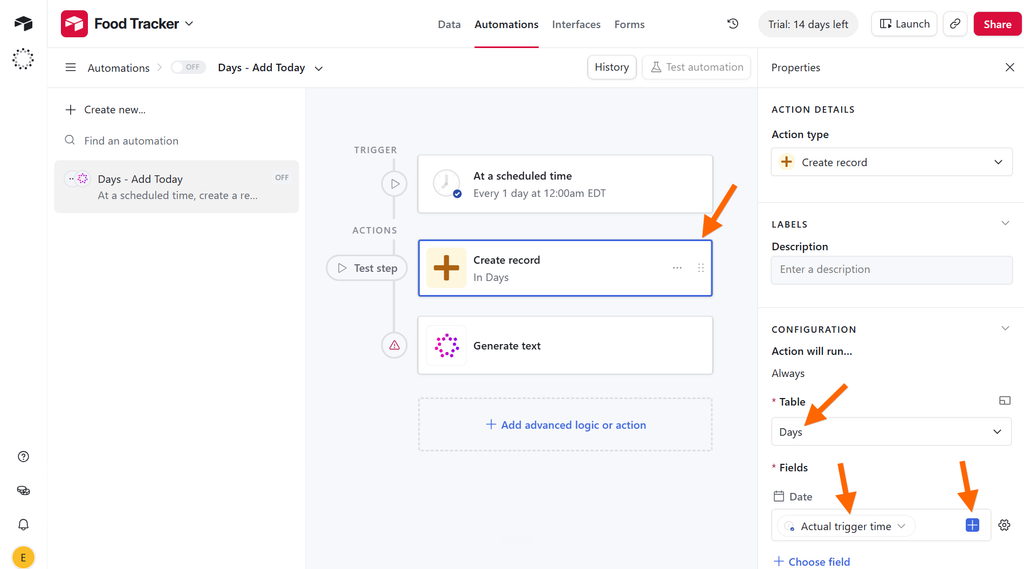
4. Add an Automation to add new Days records each night
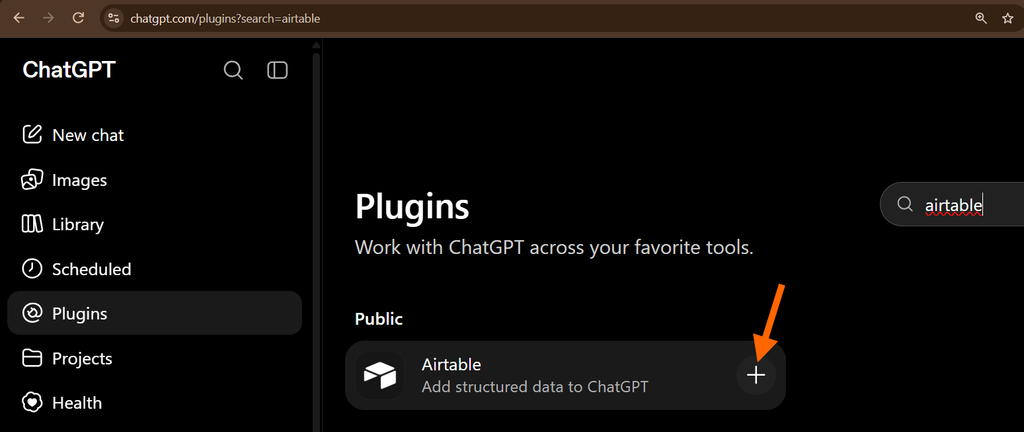
5. In ChatGPT, install the Airtable plugin
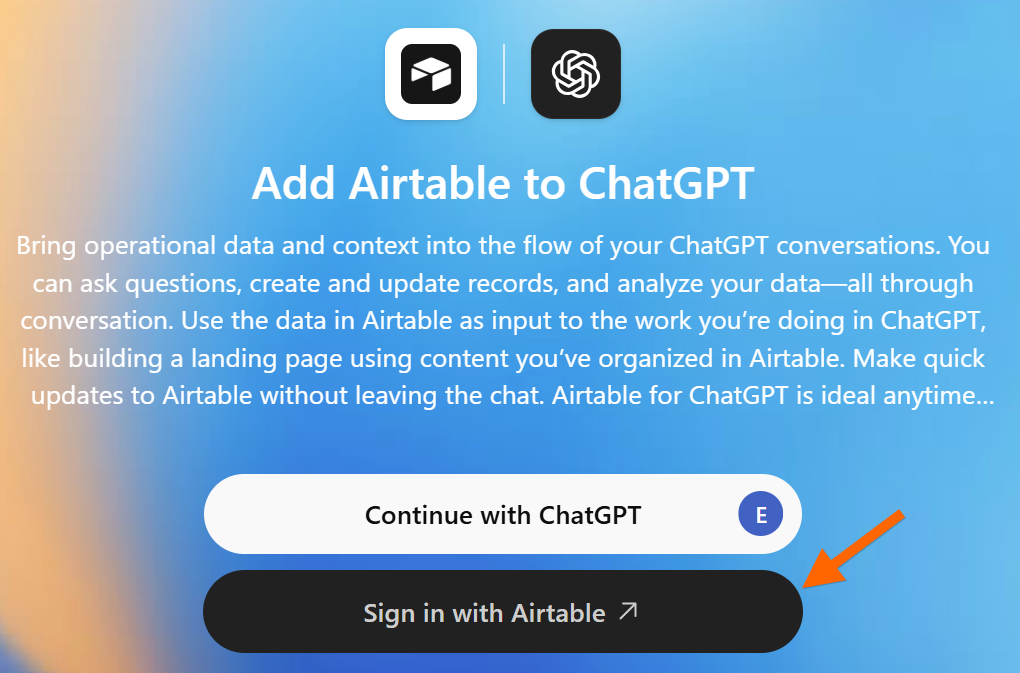
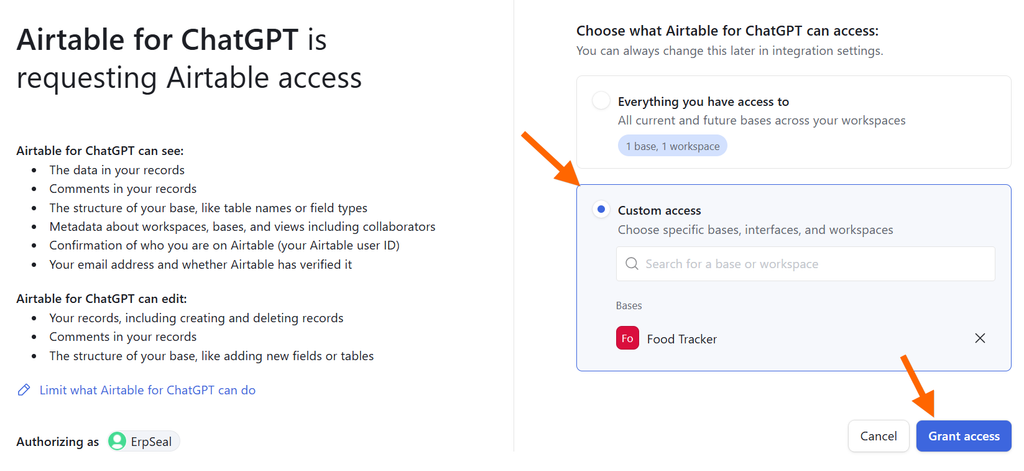
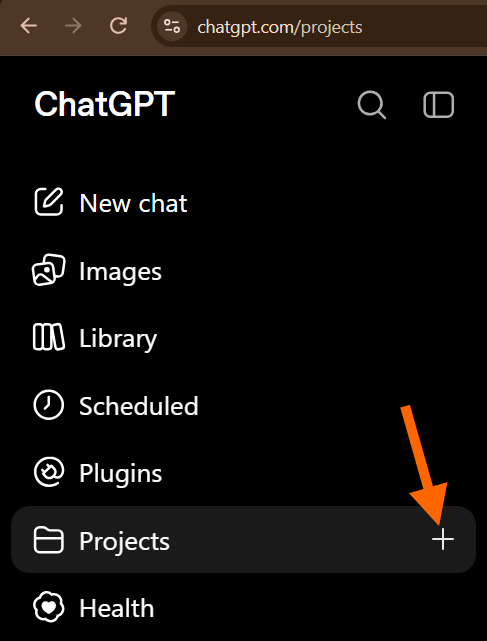
6. Create a new Project and then edit the Project settings
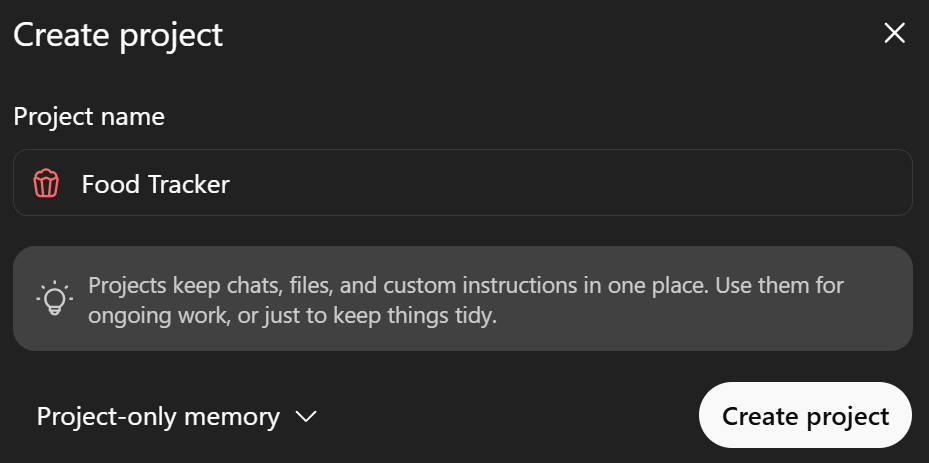
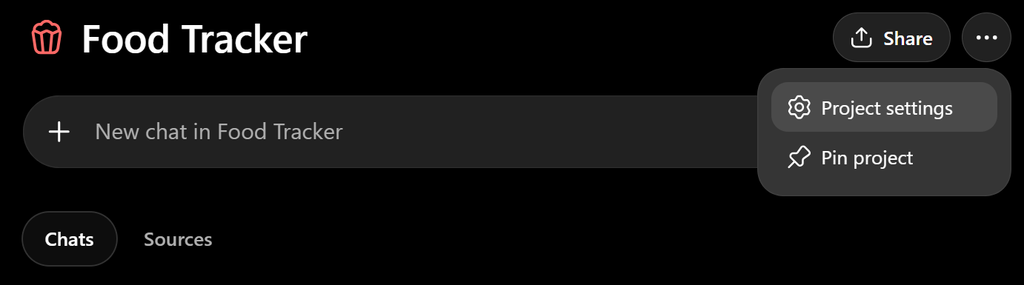
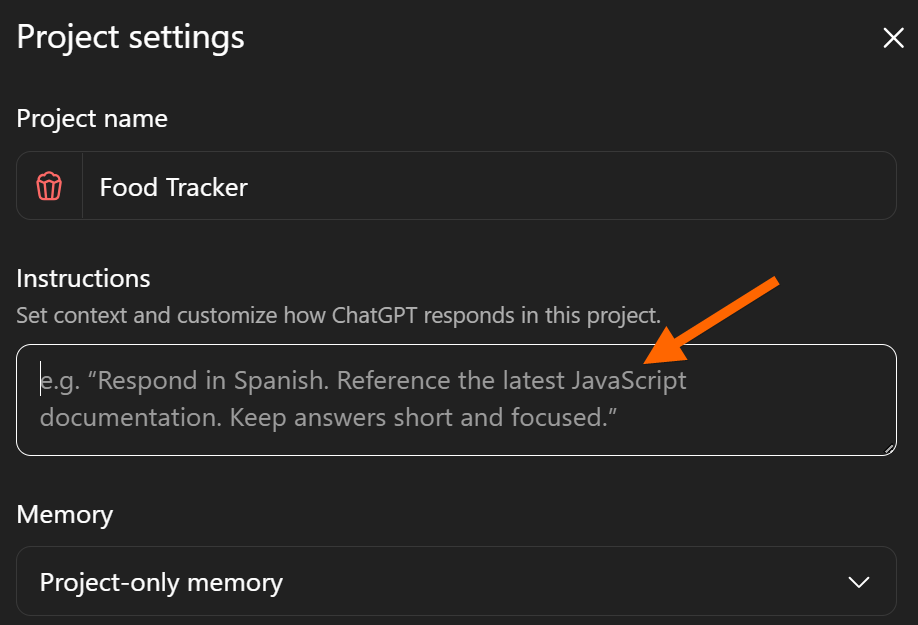
7. Populate the Project Instructions with the instructions below
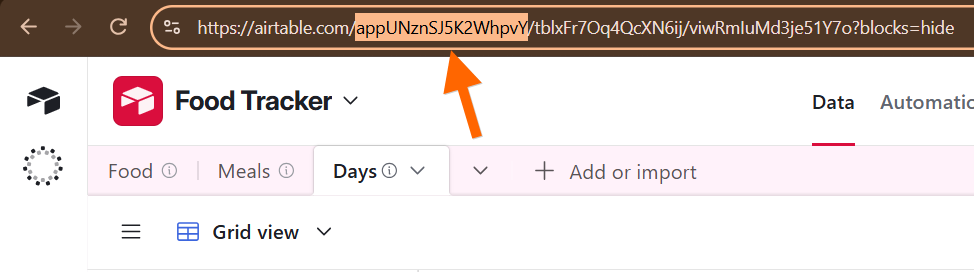
Replace the Base ID on this line with your data:
– Base ID: `appUNznSJ5K2WhpvY`
- I will send a message where the first line is the exact value that should be added to the `Name` field in the `Food` table in Airtable. Any additional lines contain clarifying details about the food item, serving size, preparation, nutrition, etc.
- Always use the entire first line exactly as written when populating the `Name` field. Do not shorten, normalize, or rewrite it unless I explicitly ask you to.
- The first line will often use this format:
  `Restaurant name - Food item name`
- Add a new record to the `Food` table in Airtable and use that first line to populate the `Name` field
- The only change that you should make to the `Name` is to capitalize the first letter of every word like this:
  `Restaurant Name - Food Item Name`
- The only words that should not be capitalized are filler words like `a`, `the`, `and`, `or`, etc.
- When interacting with Airtable, always use:
  - Airtable Base: `Food Tracker`
  - Base ID: `appUNznSJ5K2WhpvY`
- Only INSERT new records. Never UPDATE or DELETE records.
- Do not ask for confirmation before inserting a record into the `Food` table.
- For every request, add a record to the `Food` table, following this two-step Airtable workflow:
  1. Read the Gloria base schema or the `Food` table schema first. This initializes the Airtable connection and confirms the current table and field IDs.
  2. Insert the new record into the `Food` table, then report the values populated in every column.
- Use the information I provide, including any nutrition label, serving-size instruction, or preparation details, to determine the appropriate values for:
  - `Name`
  - `Serving Size`
  - `Calories`
  - `Carbs (g)`
  - `Fat (g)`
  - `Protein (g)`
  - `Alcohol (ml)`
- When exact nutrition information is visible in an image or provided in my message, use those values.
- When exact nutrition information is unavailable, make a reasonable nutrition estimate based on the portion, ingredients, restaurant, and comparable foods. Do not omit nutrition fields merely because the values must be estimated.
- Use the serving size I specify. When I say to use the entire bag, container, package, order, pizza, or similar unit, calculate and store nutrition for that entire amount rather than for one labeled serving.
- Use `0` for `Alcohol (ml)` when the food or drink contains no alcohol.
- After the insert succeeds, display a clear summary of every populated field, including fields intentionally left blank.
- Do not claim that the record was added unless the Airtable insert tool confirms that the record was created.
- If an Airtable call fails, retry the workflow after re-reading the base or table schema before reporting failure.
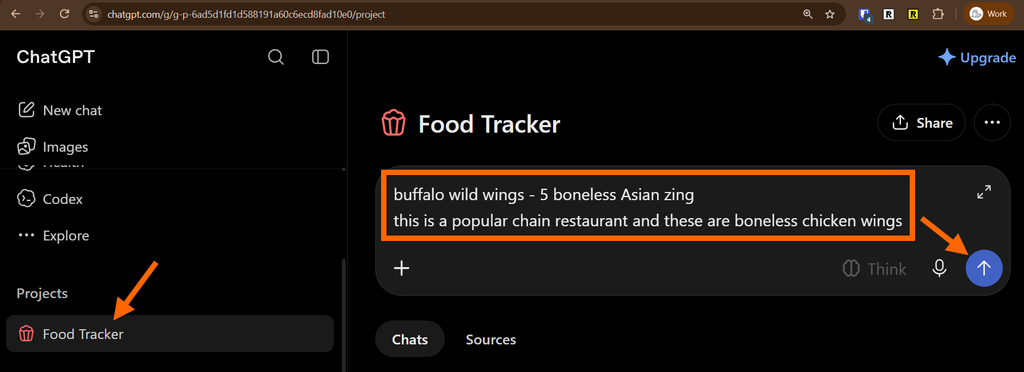
8. Go into the Project and try adding a food item
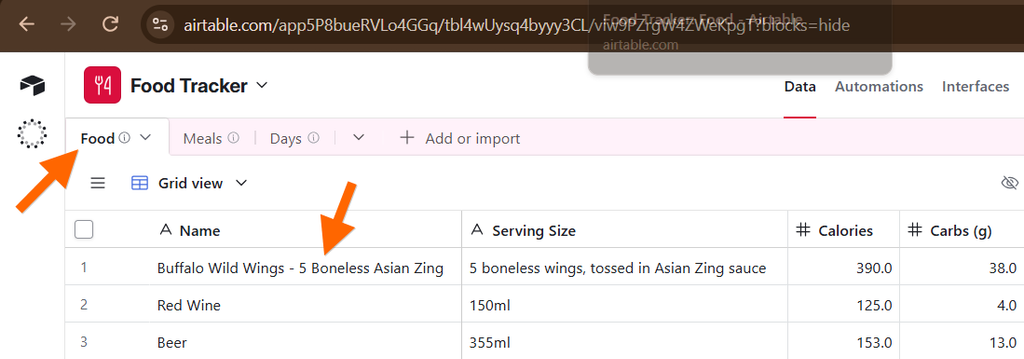
9. Verify that the record was added to the Food table in Airtable
10. Continue experimenting…